Getting Started Guide
Learn how to use DoCreators to find collaborators, create partnerships, and grow your creator business. This guide will walk you through everything step by step.
Welcome to DoCreators
Your platform for creator collaborations
DoCreators helps you find and connect with content creators for collaborations in seconds. Whether you're looking for SFS partnerships, paid promotions, or fan exchanges, we've got you covered.
Find Creators
Search for creators with similar stats, earnings, and niche
Smart Filters
Filter by earnings, fans, niche, and more
Direct Contact
Message creators directly on the platform
Verify Your Profile
Required to appear in search results
In order for your profile to appear in search results and be discoverable by other creators, you need to complete the verification process first. This is a standard verification to confirm your stats.
1Navigate to My Profile
Click on your username in the top-right corner of the navigation bar, then select "My Profile" from the dropdown menu.
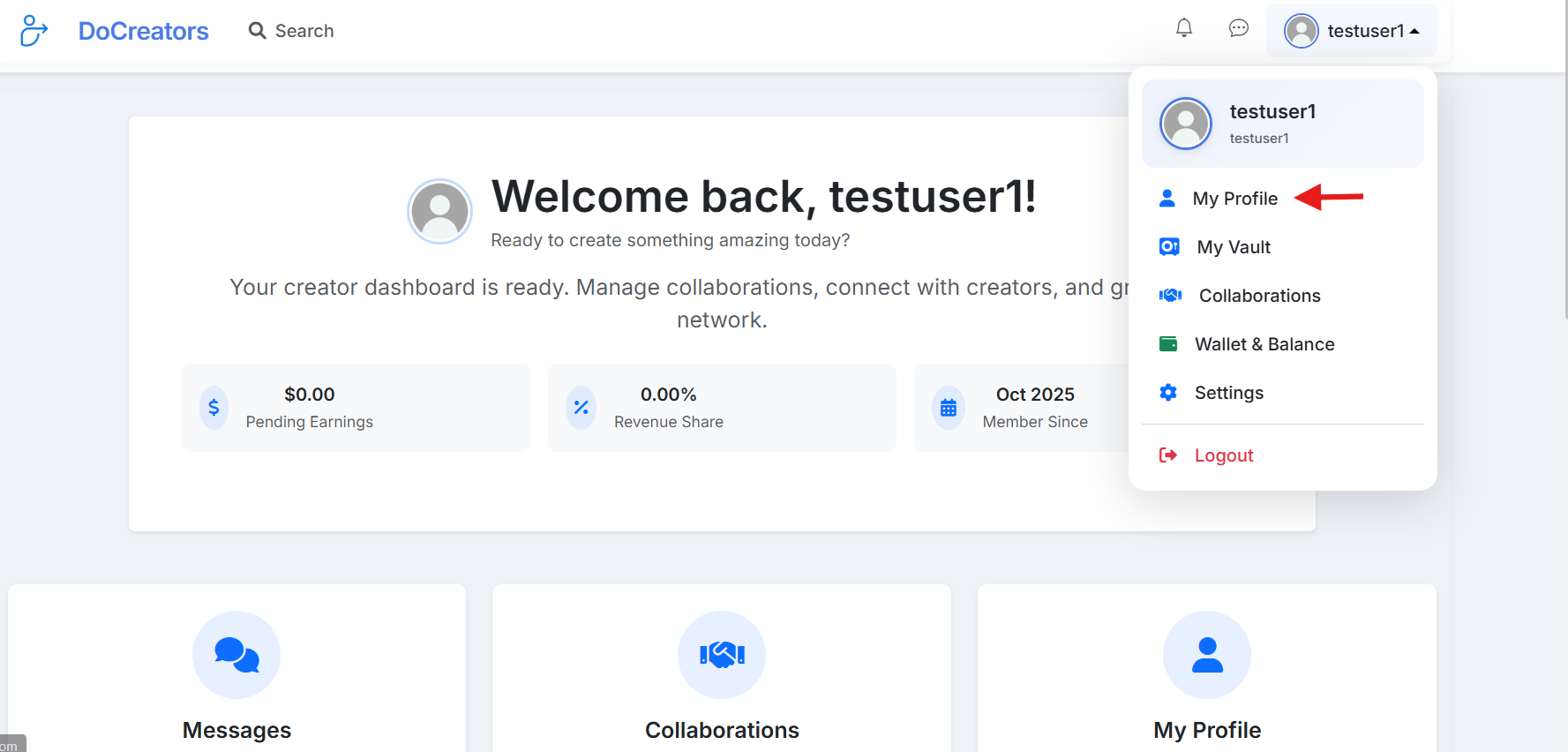
Click on your username and select "My Profile"
2Click "Complete Profile Now"
You'll see a notification banner indicating that your profile is incomplete. Click the "Complete Profile Now" button to proceed.
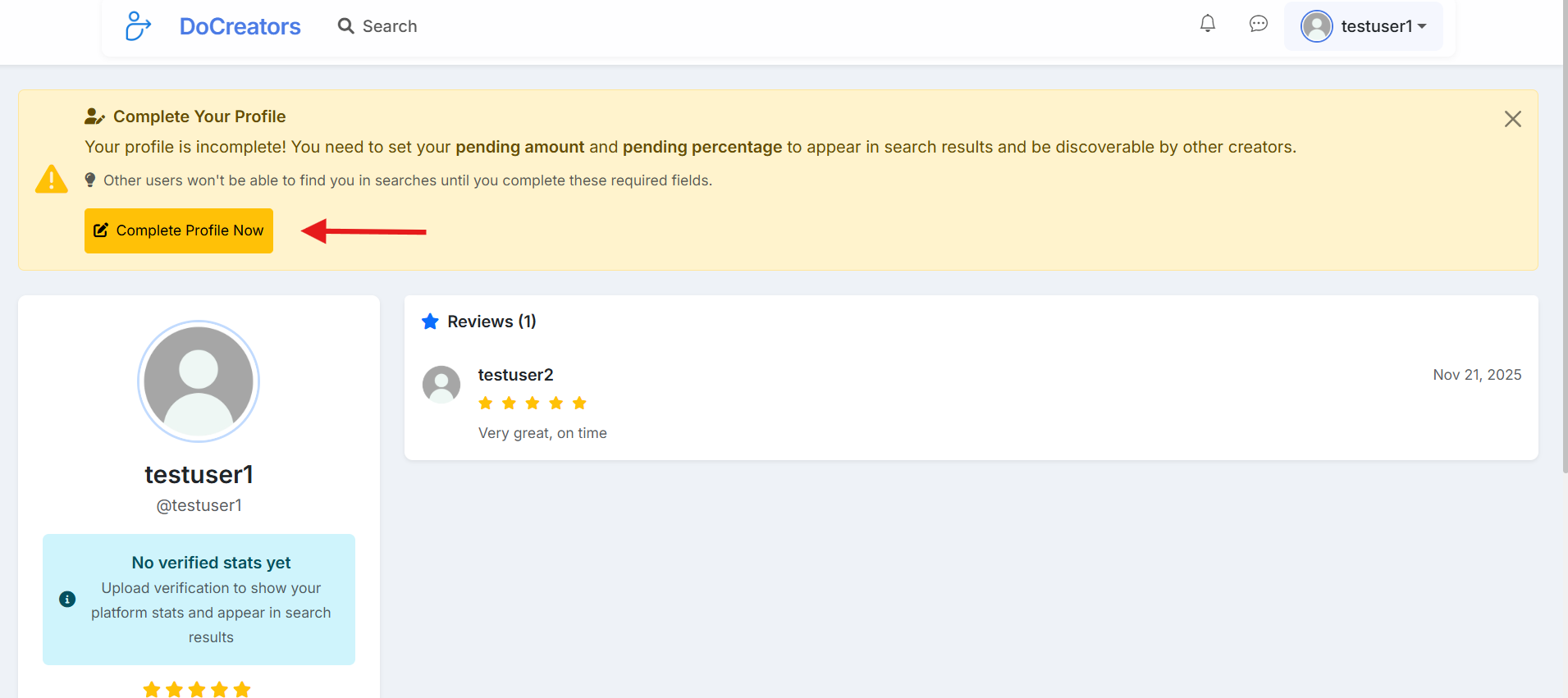
Click the "Complete Profile Now" button to continue
3Click "Upload Verification"
In the Edit Profile popup, locate the Verification Status section and click the "Upload Verification" button.
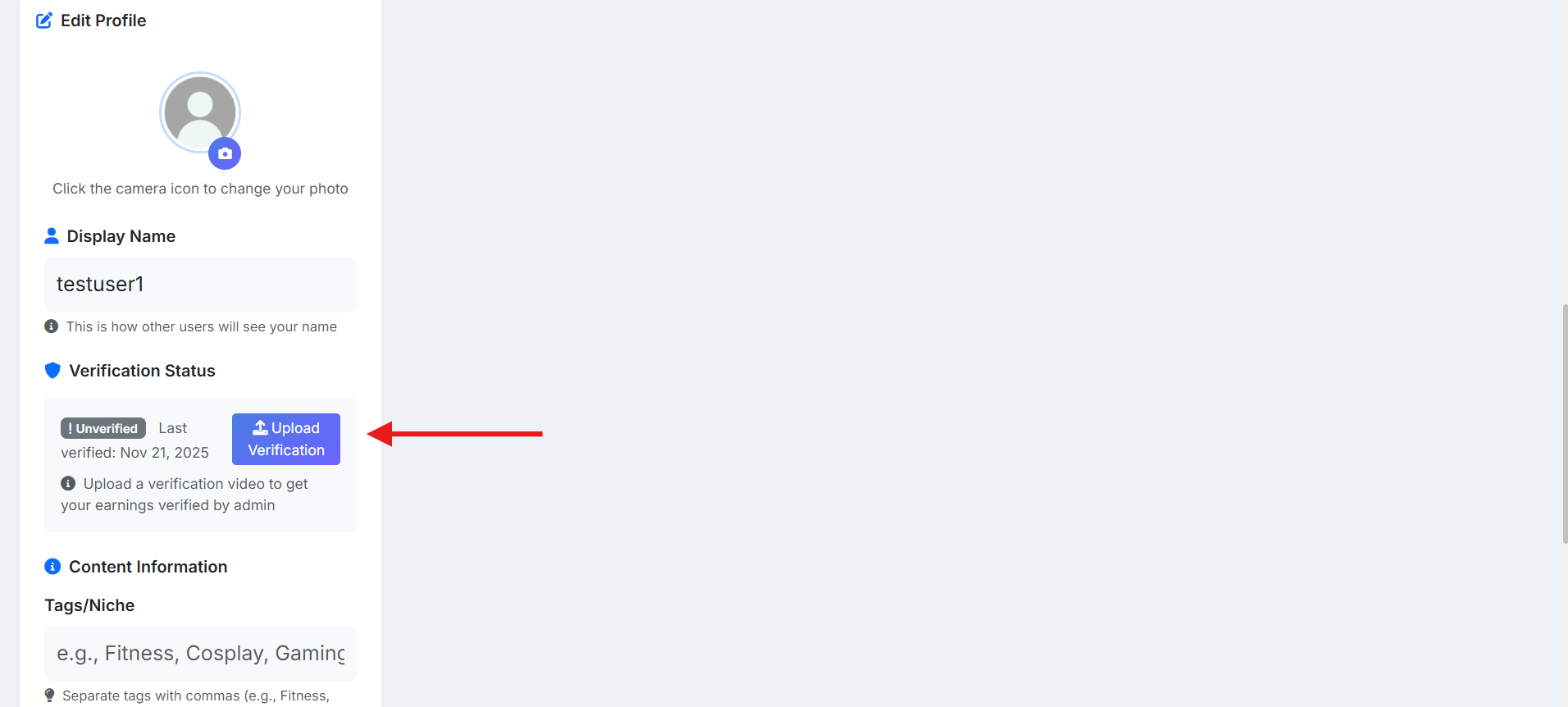
Find the Verification Status section and click "Upload Verification"
4Upload Your Verification Video
Follow the verification requirements carefully. Your video must show:
- Your platform profile page
- Your username clearly visible
- Number of fans/subscribers
- Number of accounts following
- Your earnings/stats dashboard
- Use Chrome or Firefox browsers only
- Record from today's date
- Maximum file size: 100MB
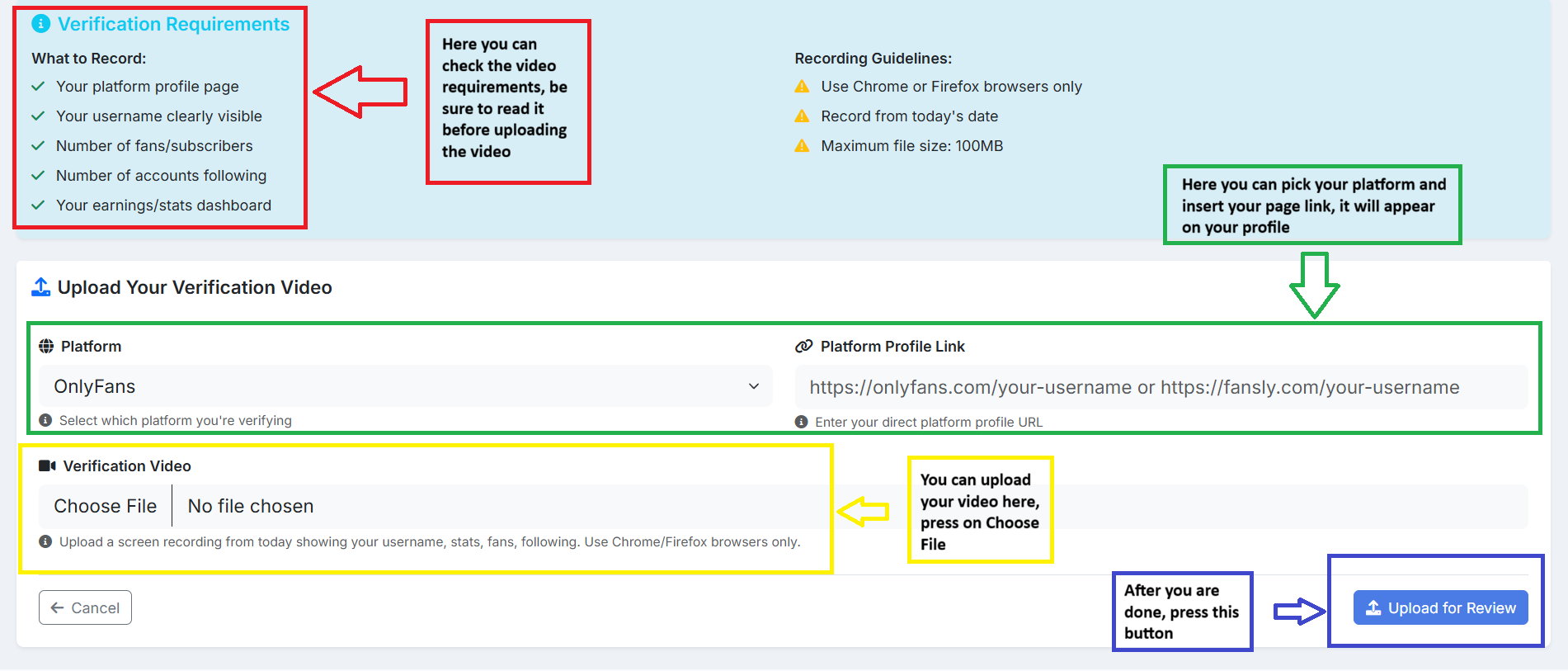
Upload your verification video and enter your profile link
5Wait for Approval
After submitting your verification, you'll see a "Verification Pending Review" message. Our team will review your submission within 24-48 hours.
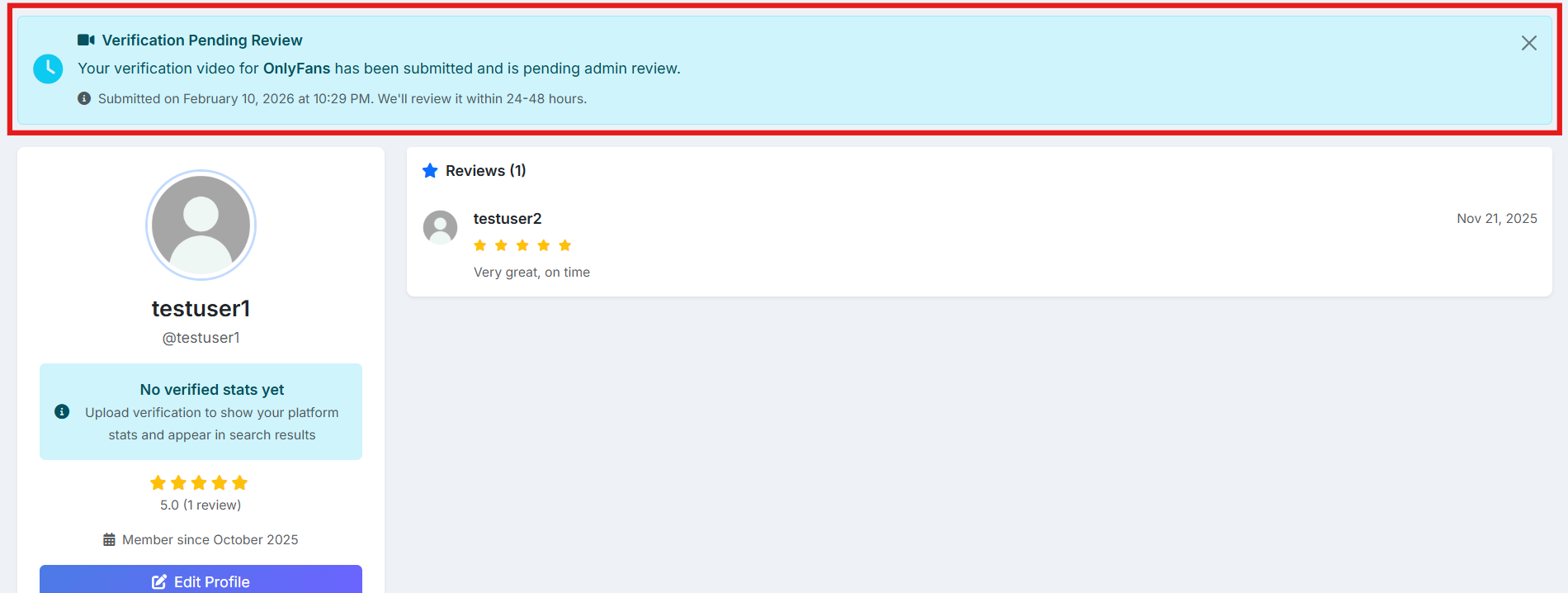
Your verification is pending review
Complete Your Profile
Make your profile stand out
1Open Edit Profile
Go to My Profile and click the "Edit Profile" button to customize your profile information.
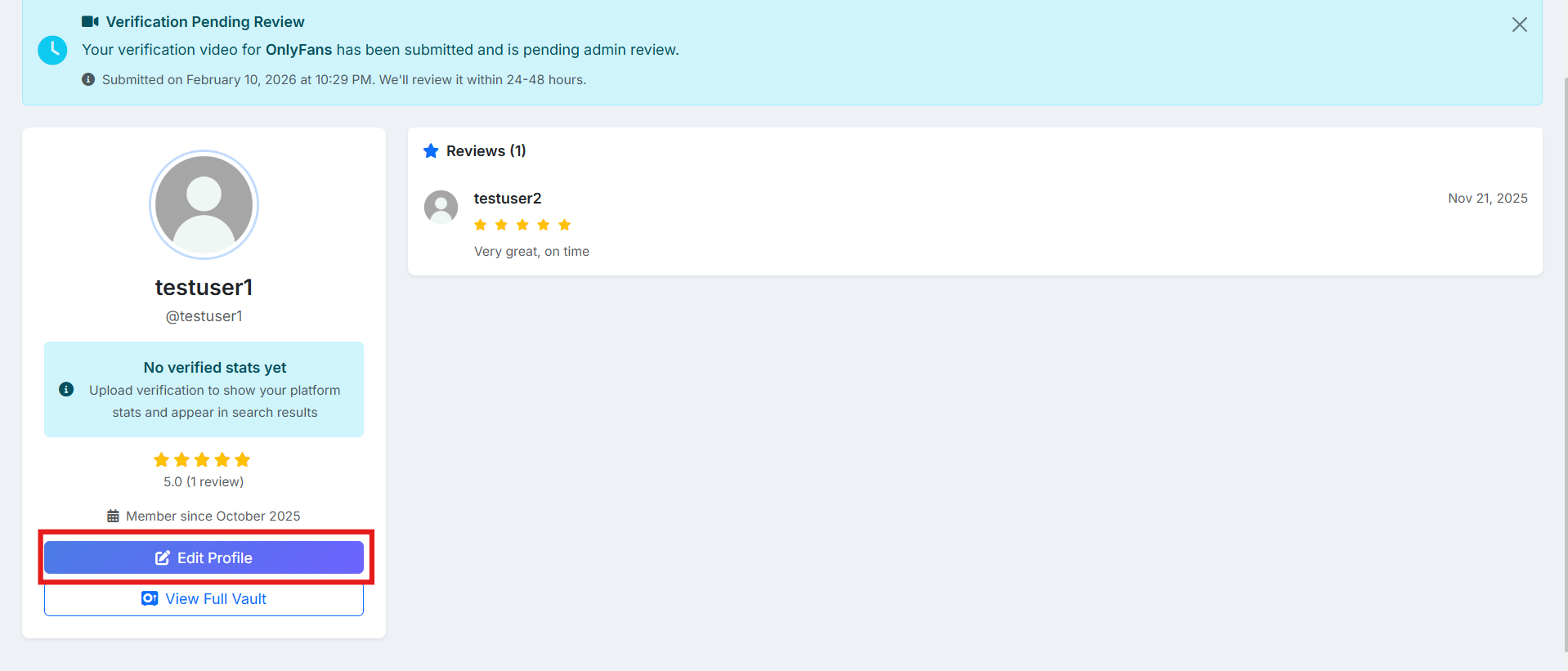
Click "Edit Profile" to start customizing
2Fill in Your Profile Details
Customize your profile with the following information:
- Profile Photo: Click the camera icon to upload your photo
- Display Name: We recommend using your creator page username
- Tags/Niche: Add tags that represent your content (e.g., Fitness, Cosplay, Gaming)
- Bio: Write a brief description about yourself and your content
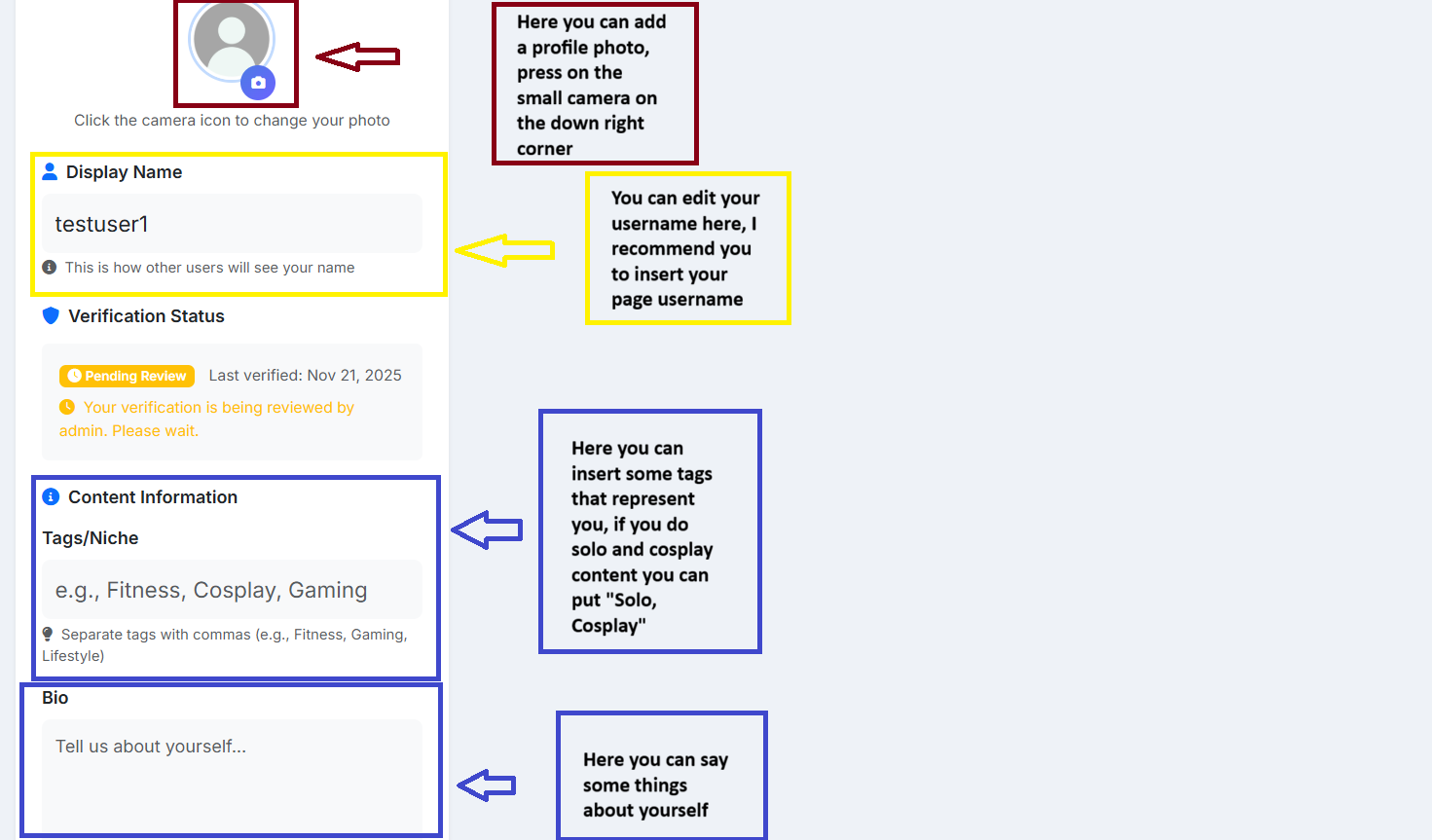
Complete all profile fields for better visibility
3Save Your Changes
Once you've filled in all the details, click the "Save Changes" button to update your profile.
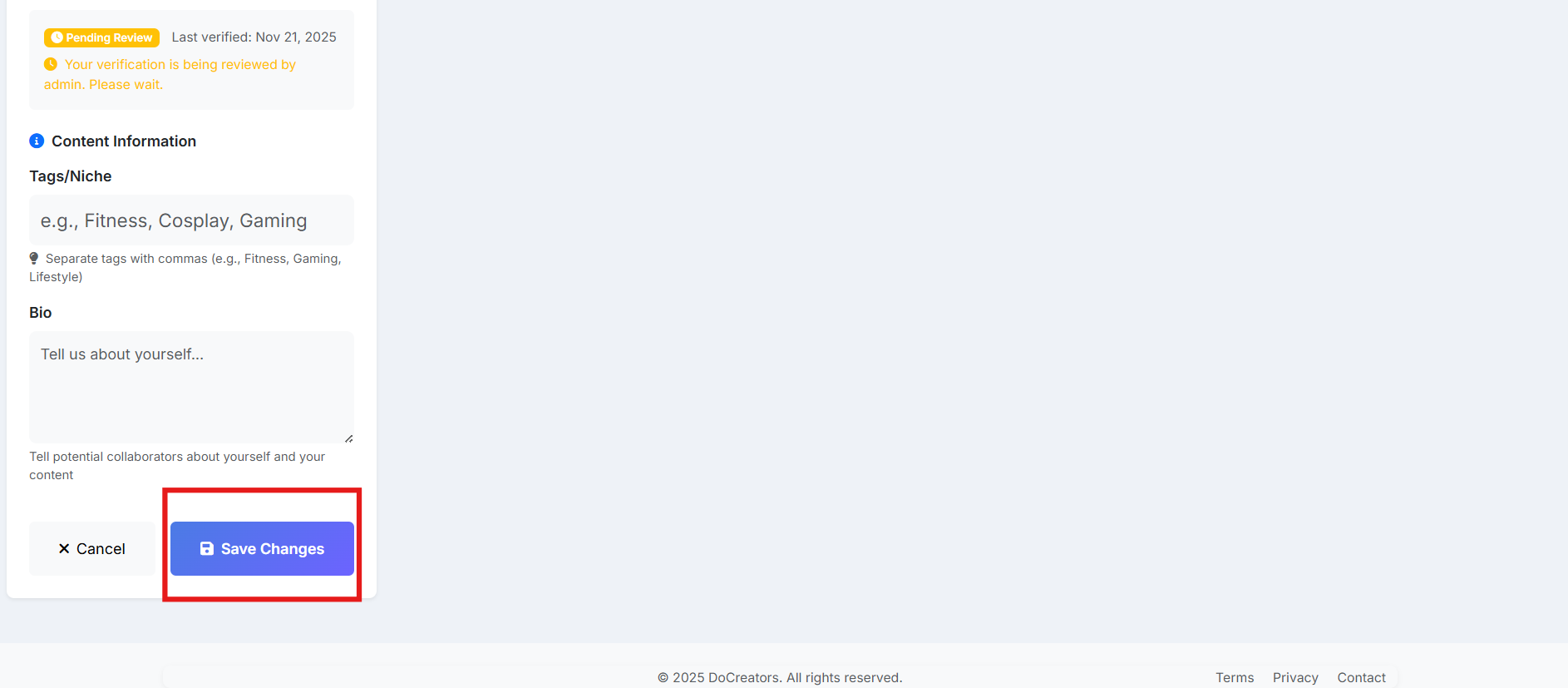
Don't forget to save your changes
4Access Your Vault
To add photos and videos to your profile, navigate to "My Vault" from the dropdown menu.
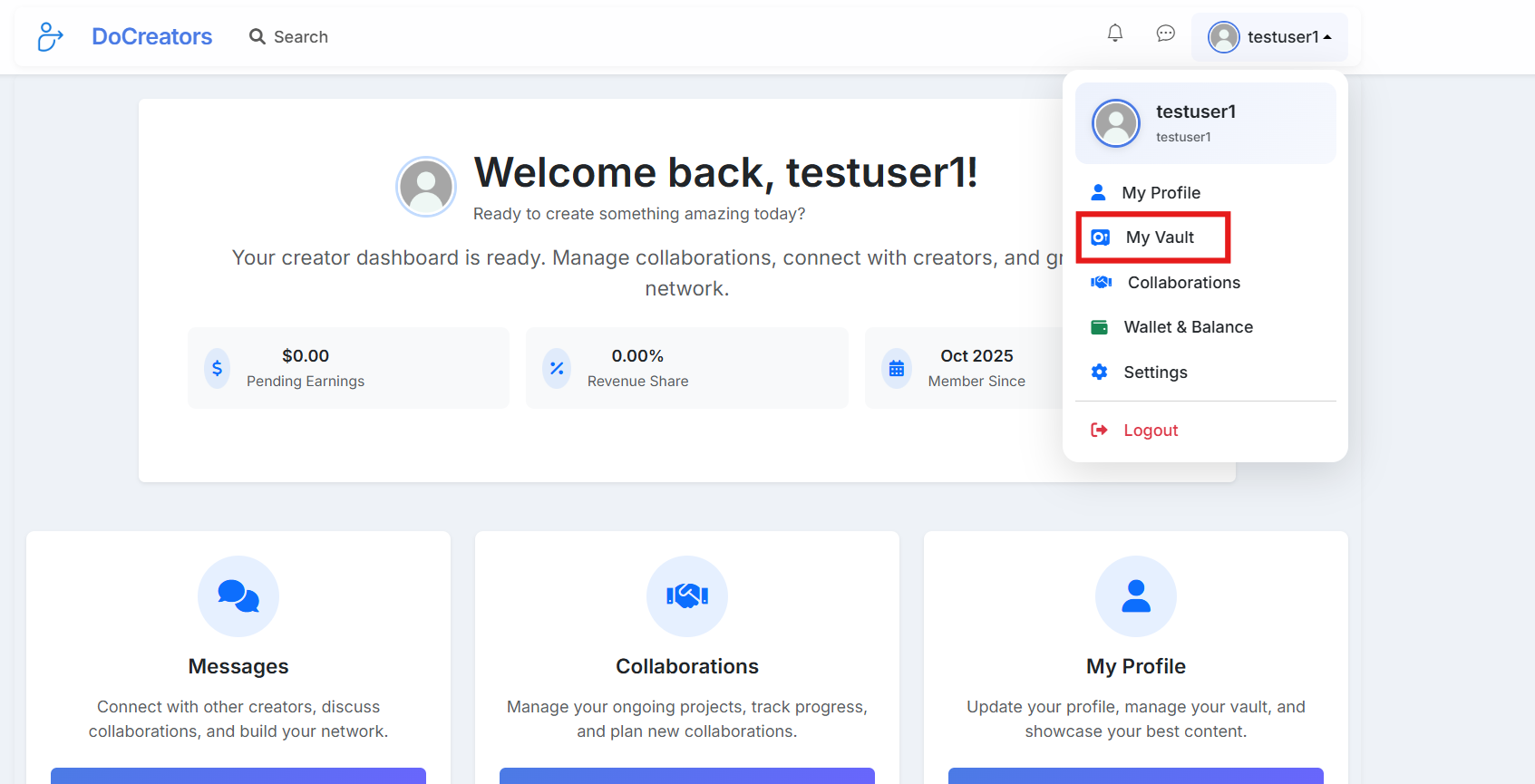
Select "My Vault" from the navigation menu
5Upload Media to Your Vault
Click "Add Media" or "Upload Your First Media" to start adding content to your vault.
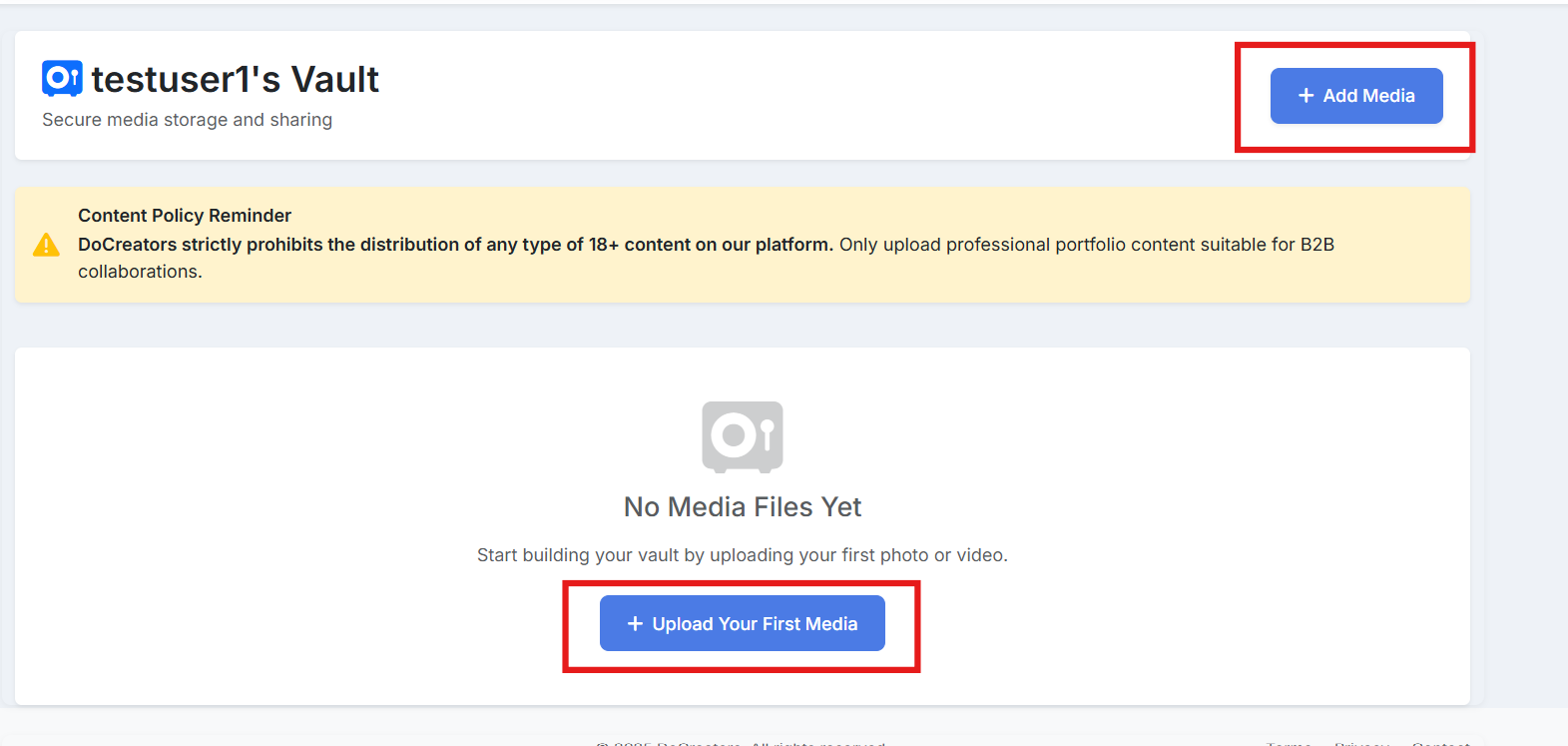
Click either button to upload media
6Set Privacy Settings
When uploading media, you can choose the privacy setting:
- Public: Visible to everyone who visits your profile
- Private: Only visible to users with whom you have an active collaboration
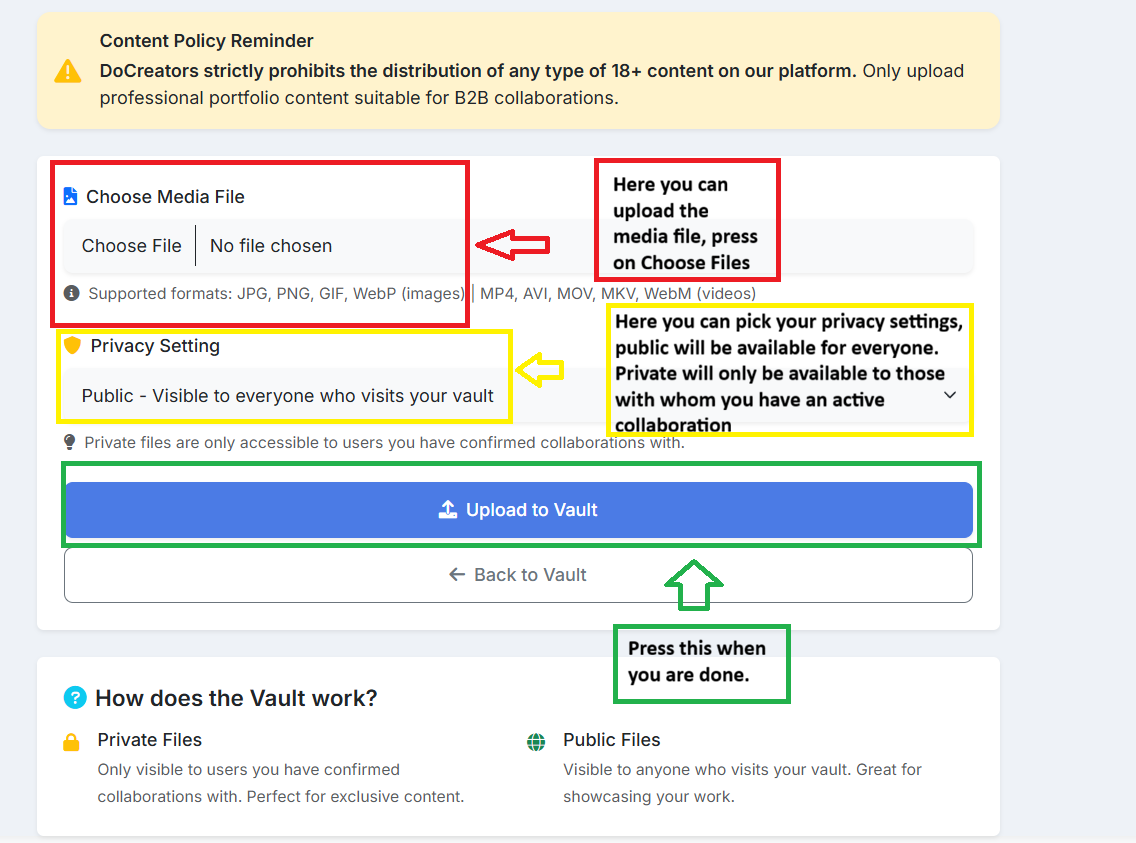
Select your privacy preference and upload
Find Collaborators
Search, connect, and create partnerships
Now that your profile is complete, it's time to find collaboration partners!
Searching for Creators
1Go to Search
Click the "Search" button in the navigation bar to access the collaborator search page.
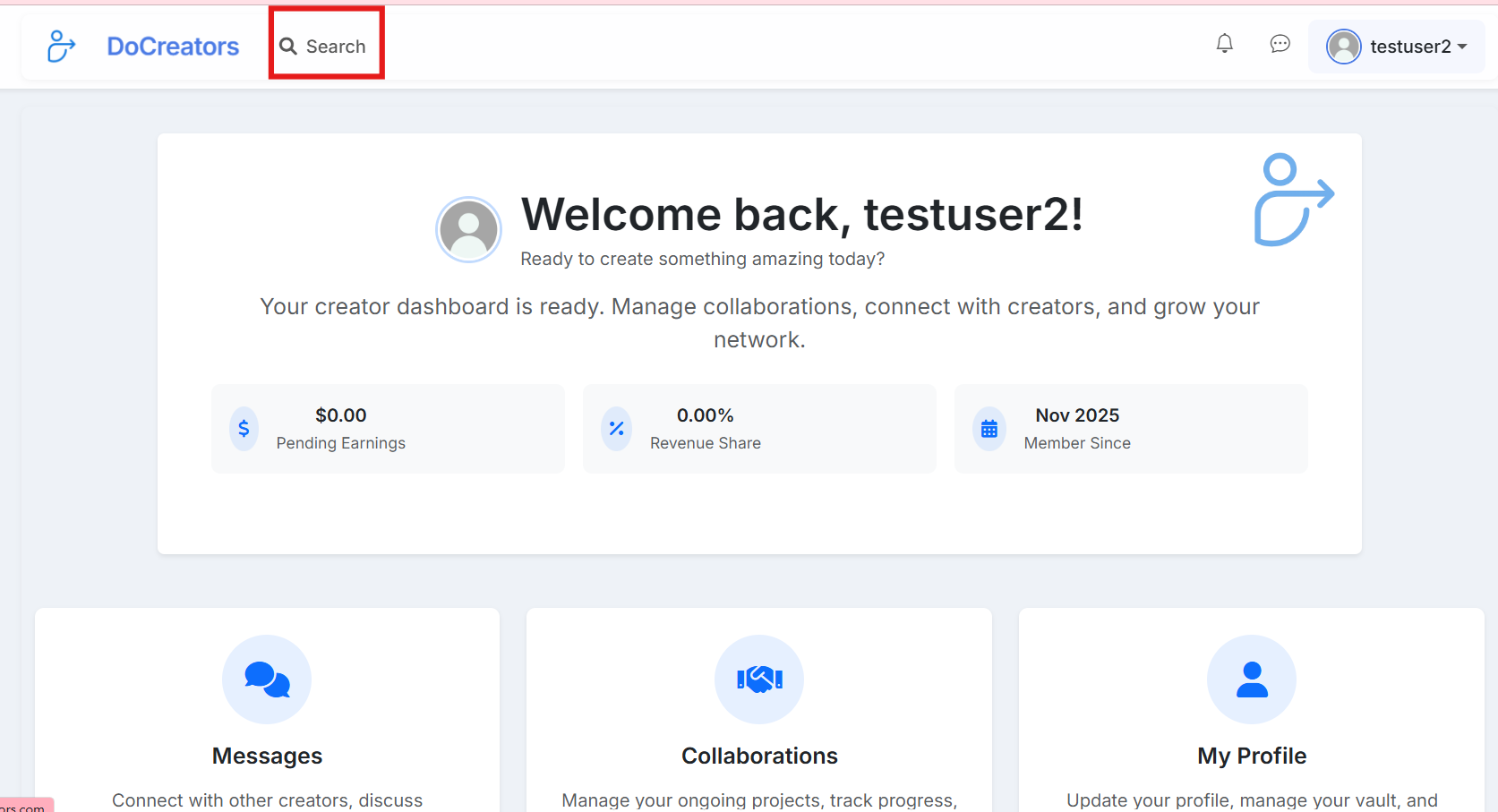
Click "Search" in the navigation bar
2Use Search Filters
Apply filters to find creators that match your collaboration needs:
- Pending Amount ($): Filter by minimum/maximum earnings
- Pending Percentage (%): Filter by revenue share percentage
- Number of Fans: Filter by subscriber count
- Following: Filter by number of accounts following
- Tags/Niche: Filter by content category
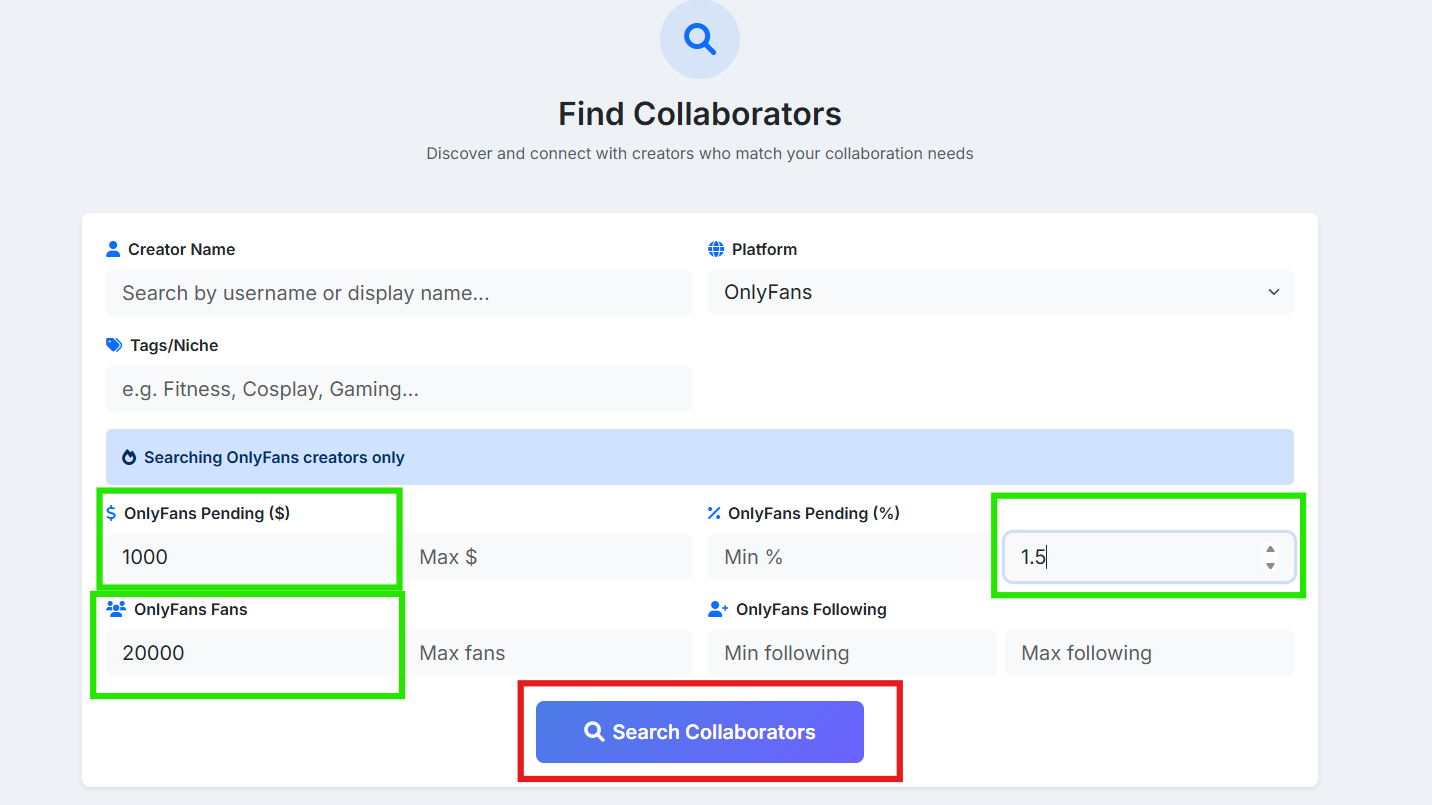
Set your search criteria and click "Search Collaborators"
3Review Search Results
Browse through the results to find potential collaborators. You can see their stats at a glance, including earnings, fans, and following count.
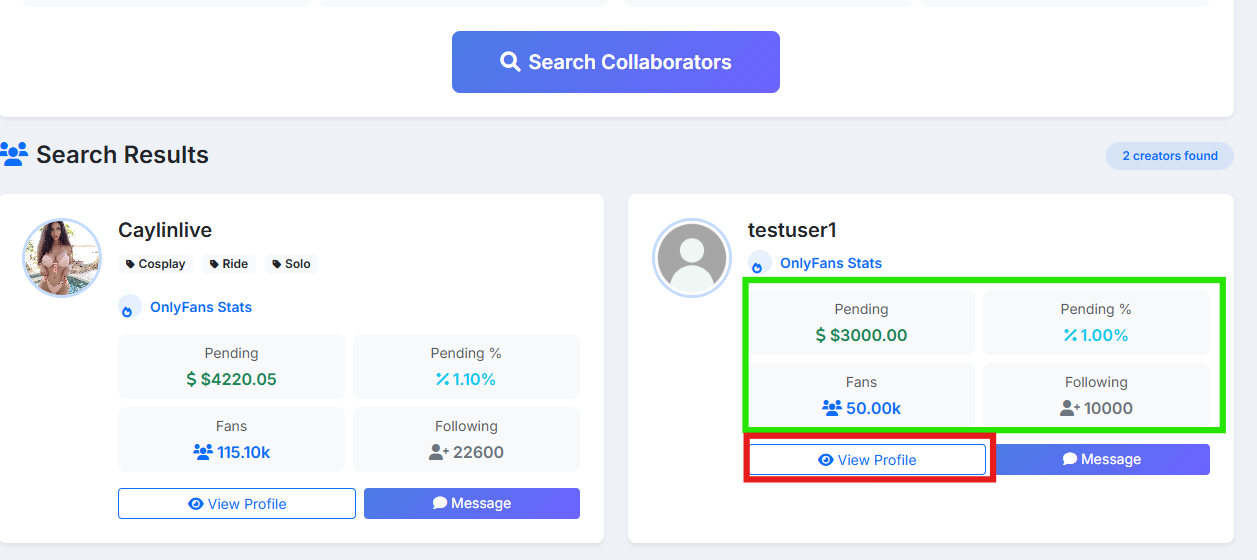
View creator stats and click "View Profile" for more details
4View Creator Profile
Click "View Profile" to see more details about a creator, including their public gallery, reviews, and verified stats. Then click "Send Message" to start a conversation.
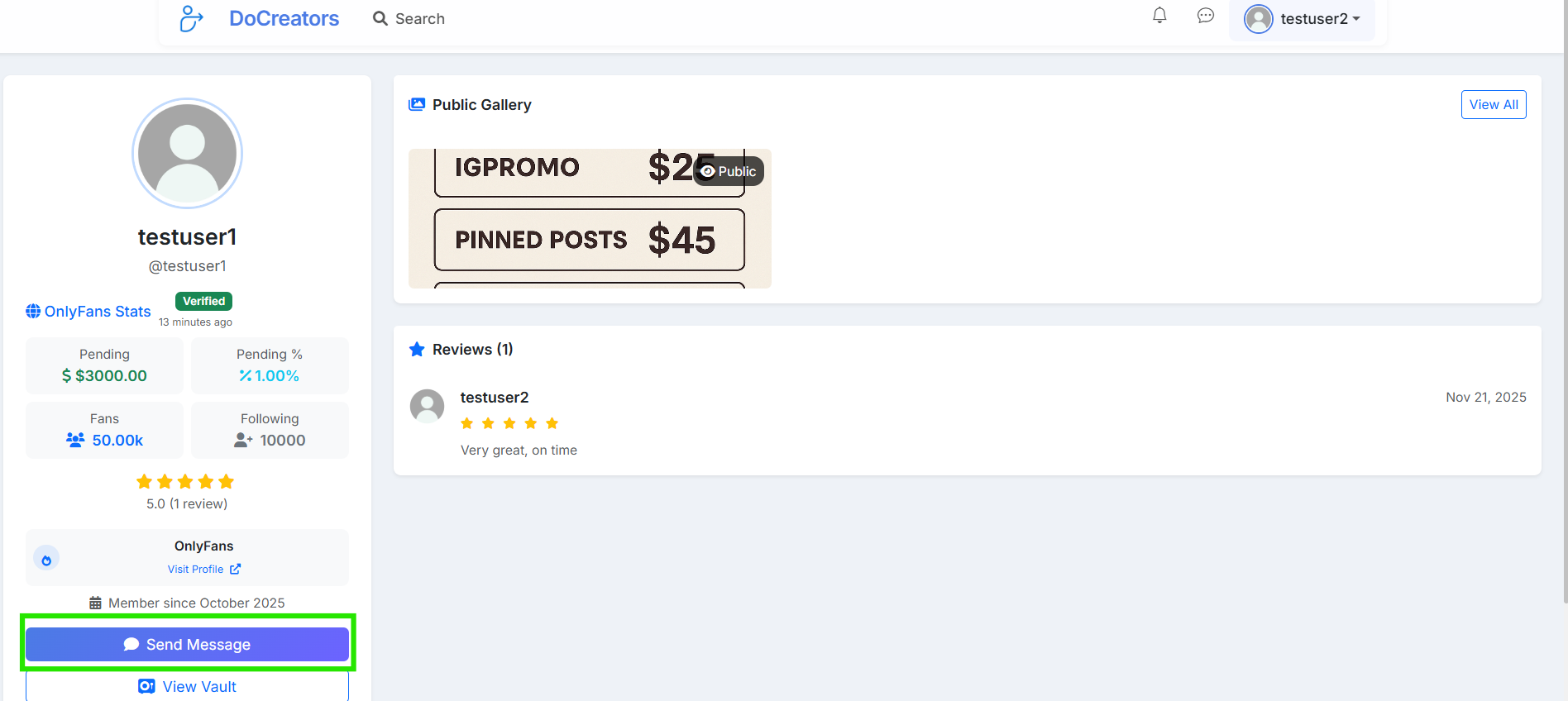
Review the profile and click "Send Message" to connect
Starting a Collaboration
5Chat and Discuss
Use the chat to discuss collaboration details with the other creator. Once you've agreed on the terms, click "Create Collaboration" to formalize the partnership.
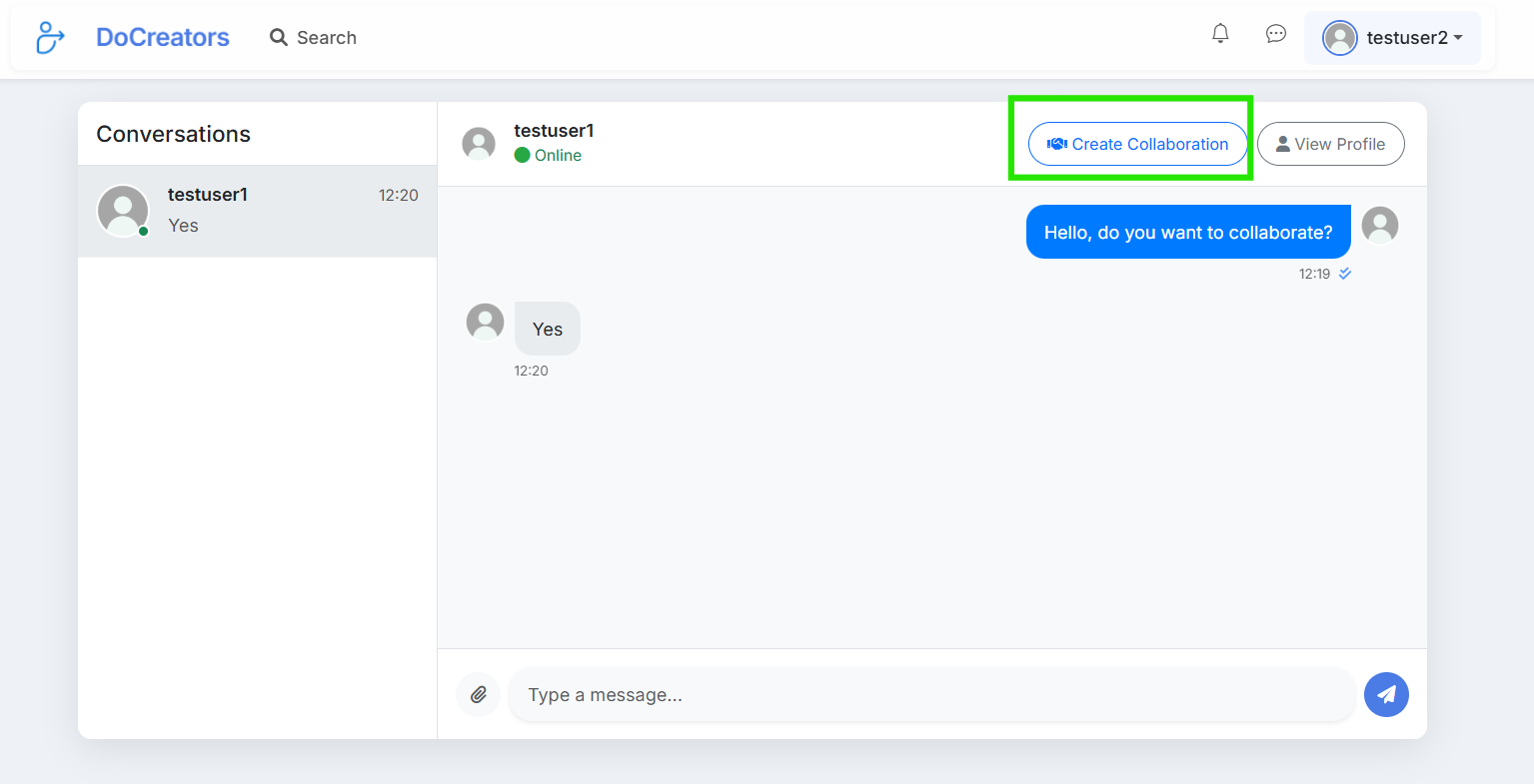
Discuss terms and click "Create Collaboration" when ready
6Choose Collaboration Type
Select the type of collaboration that suits your agreement:
SFS
Shout for Shout - exchange promotional posts
FreeGG Swap
Exchange fans - both promote until target reached
FreePromo
Paid promotion - sell your promotional services
PaidGG Promo
Paid fan exchange - paid version of GG Swap
Paid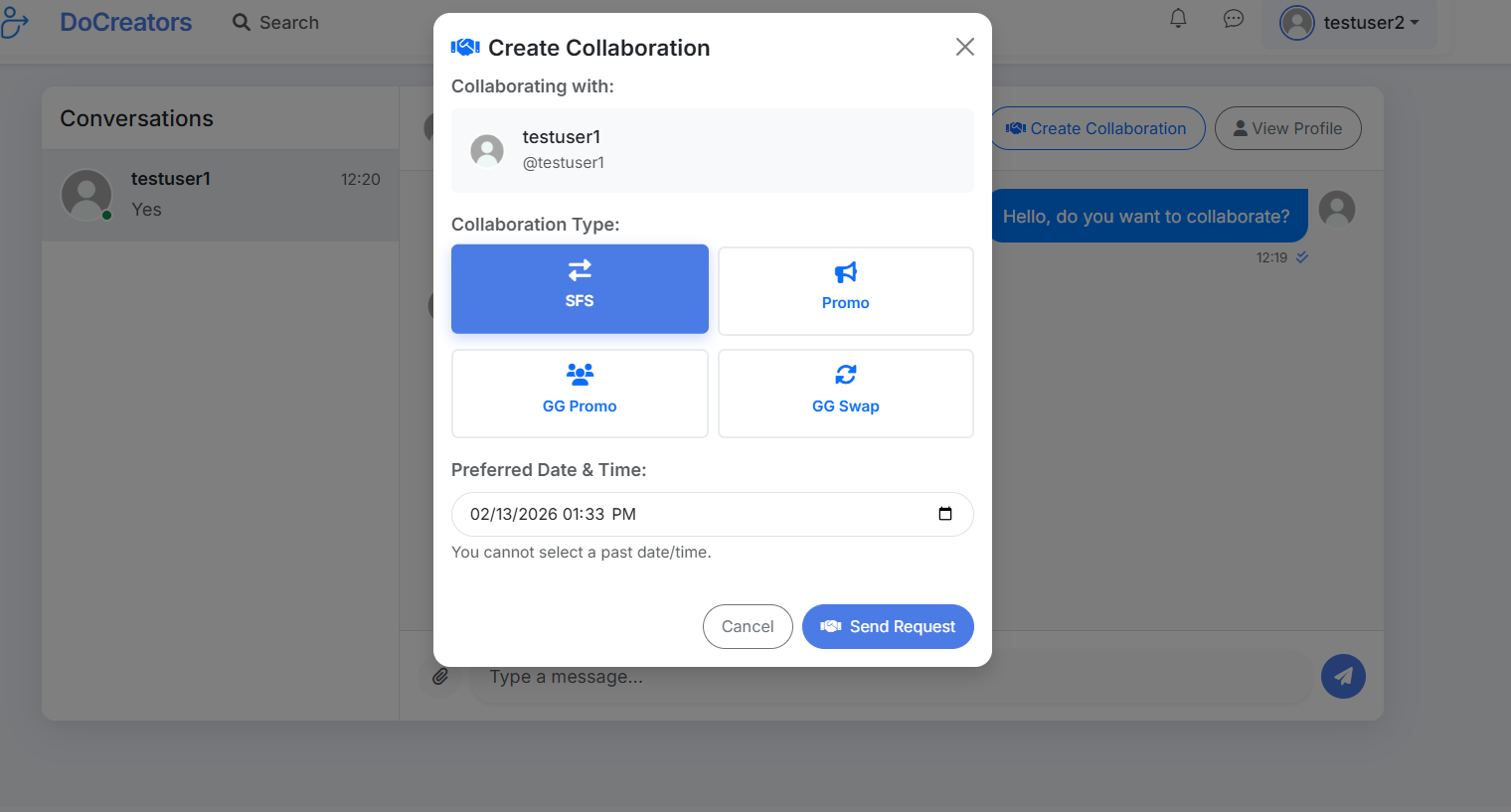
SFS: Select date and send request
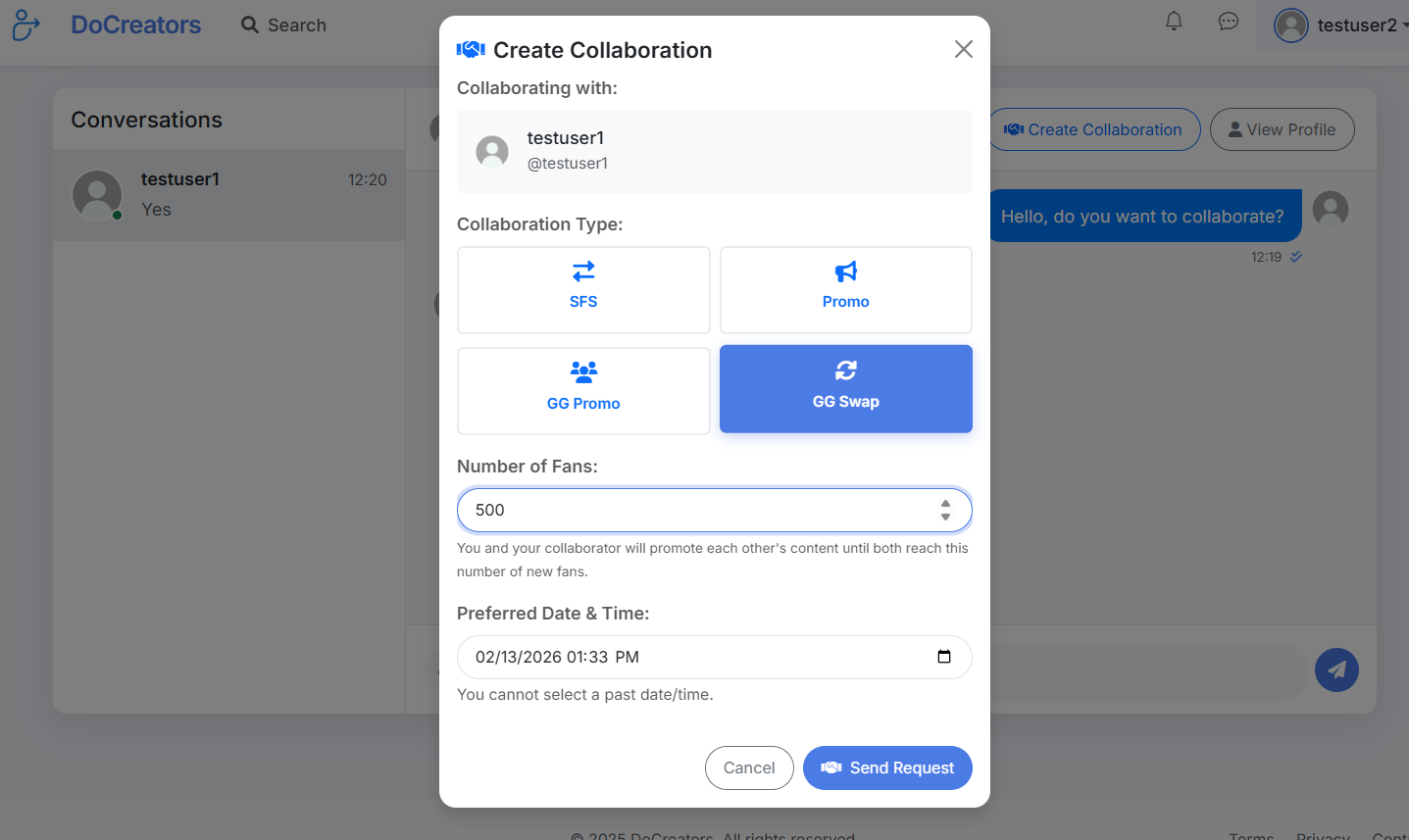
GG Swap: Set target fans and date
7Paid Promotions (Seller Required)
If you want to sell paid promotions, you need to become a seller first (see Step 4). When creating a paid promo, you'll set your price and the platform will calculate the buyer's total including the 10% platform fee.
The user who creates a paid promotion is the seller. Make sure you're the one selling the service before creating a paid collaboration.
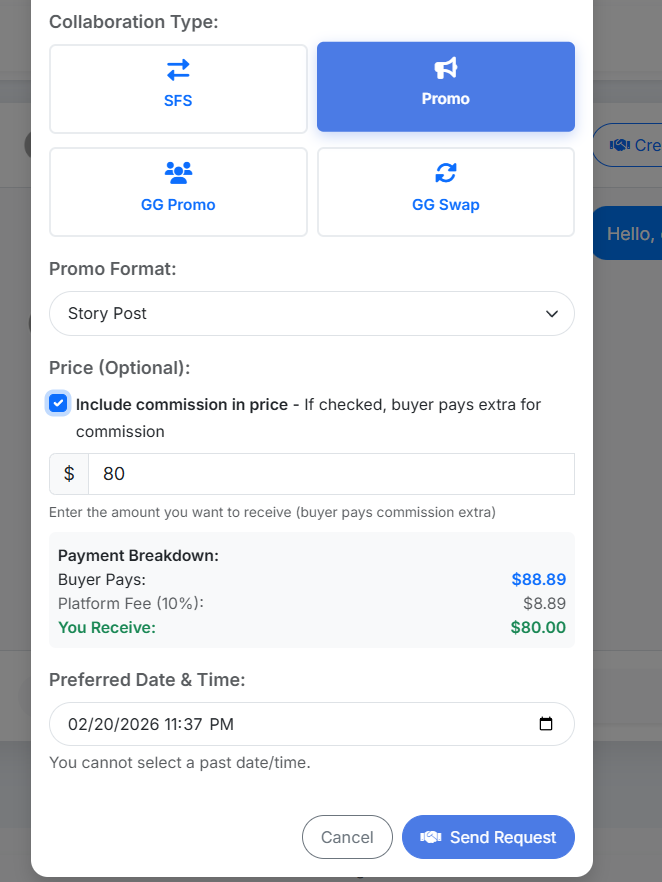
Set your price and see the payment breakdown
Managing Collaborations
8Receiving Collaboration Requests
When someone sends you a collaboration request, you'll receive a notification. Go to "Collaborations" from your menu to view and manage all requests.
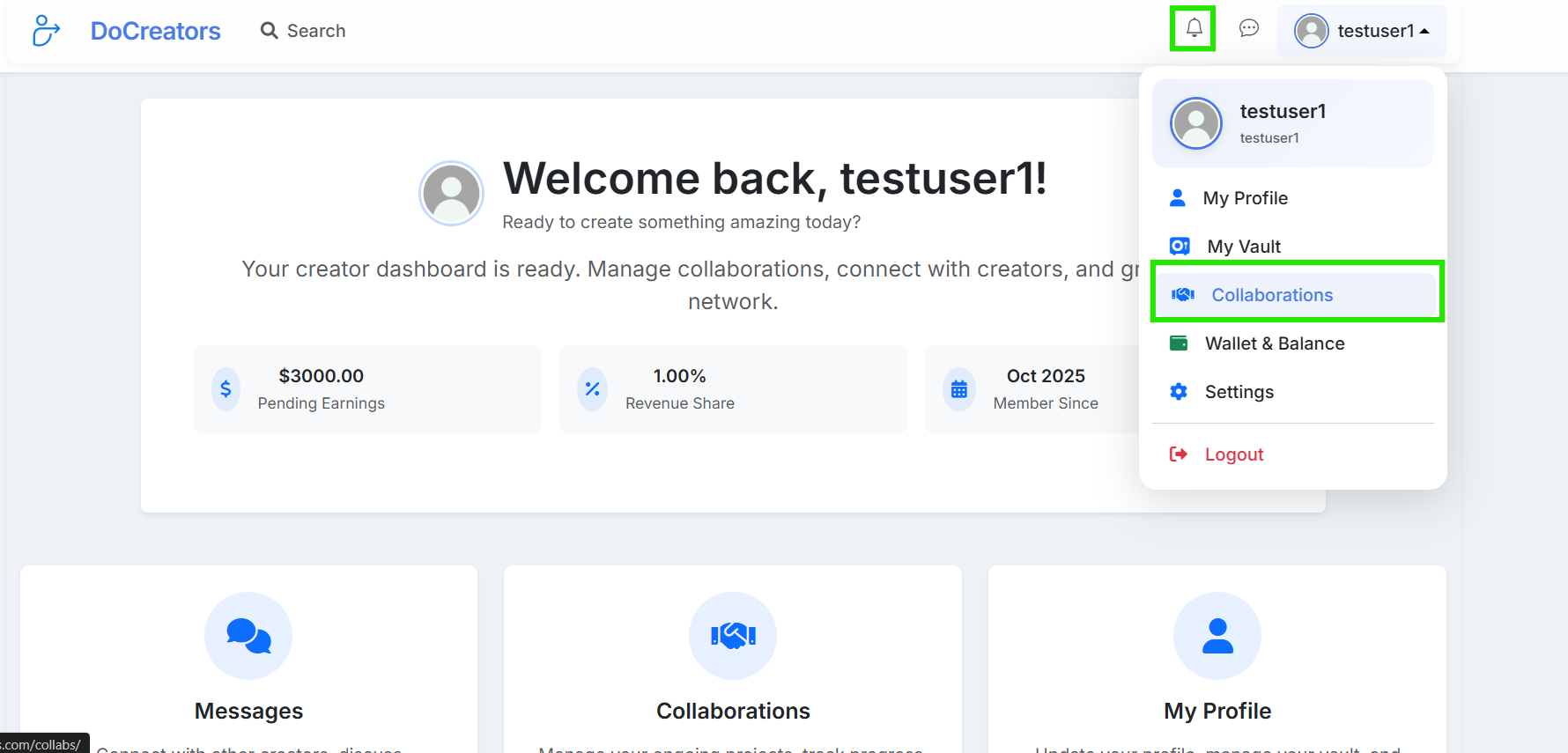
Check notifications or go directly to Collaborations
9Accept or Decline Requests
Review incoming collaboration requests and choose to Accept or Decline each one. For paid collaborations, the buyer must complete payment before you can accept.
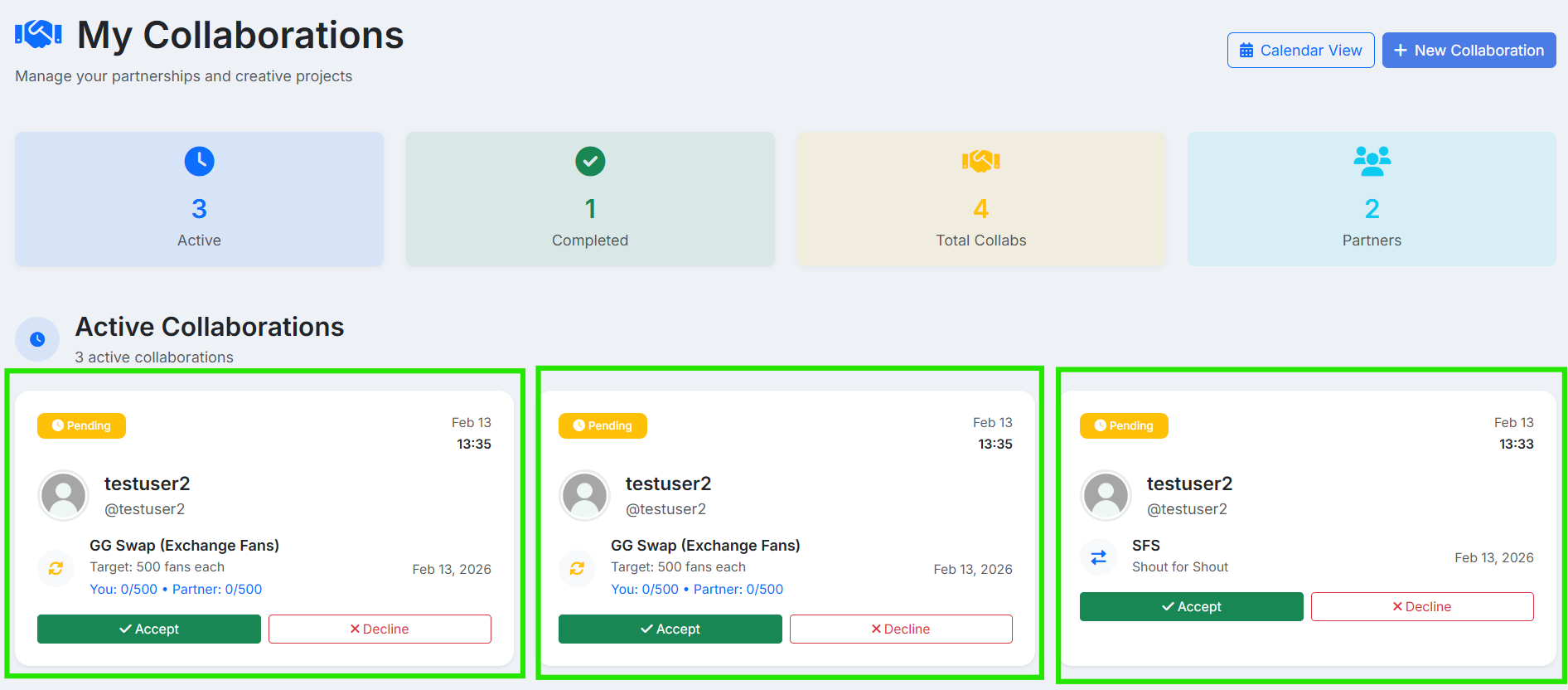
Review and respond to collaboration requests
10Track Progress (GG Swap)
For GG Swap collaborations, you can update your progress as you gain new fans. Enter the number of fans you've acquired and click "Update".
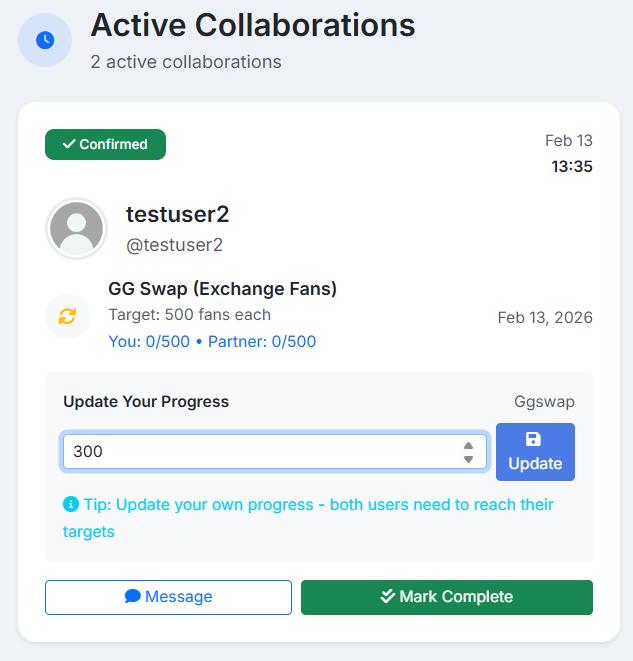
Track your progress and update your fan count
Calendar View
11Access Calendar View
For easier management of your collaborations, click the "Calendar View" button to see all your scheduled collaborations in a calendar format.
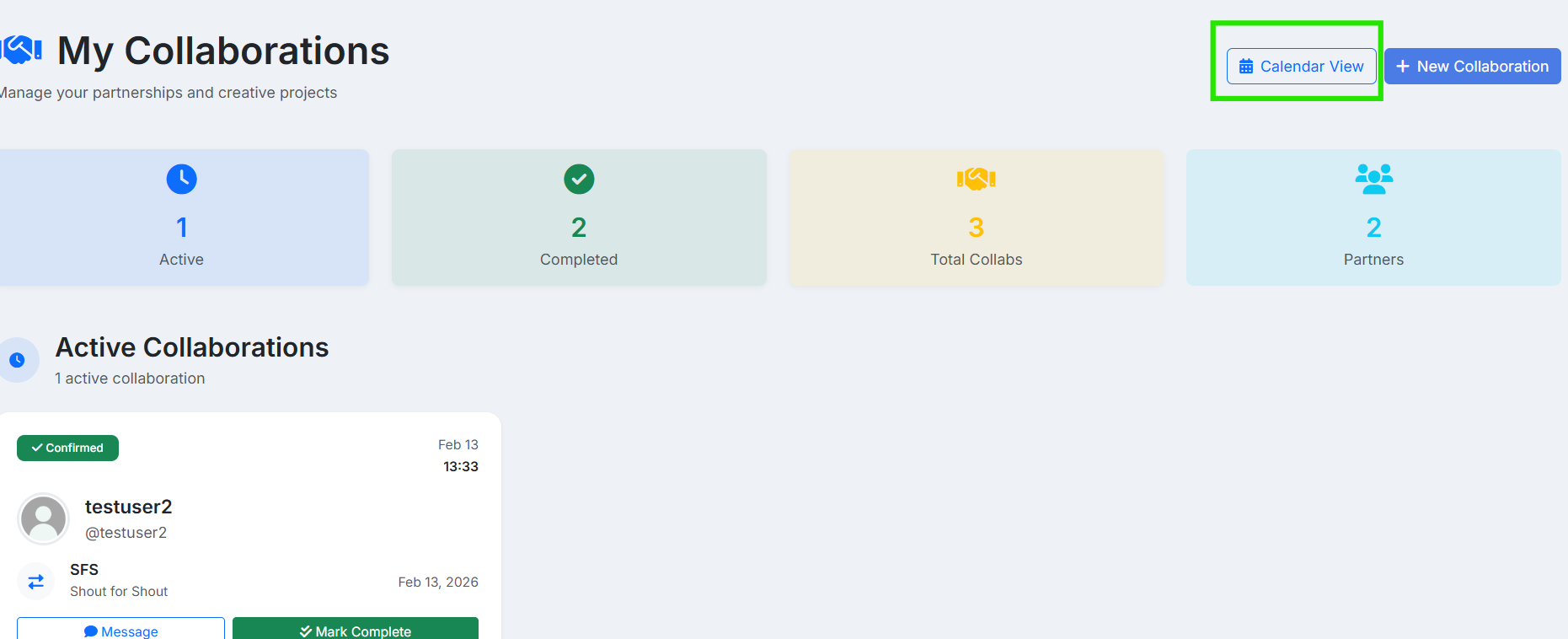
Click "Calendar View" for a visual overview
12View Scheduled Collaborations
The calendar shows all your collaborations with color-coded indicators. Click on any date to see the details of collaborations scheduled for that day.
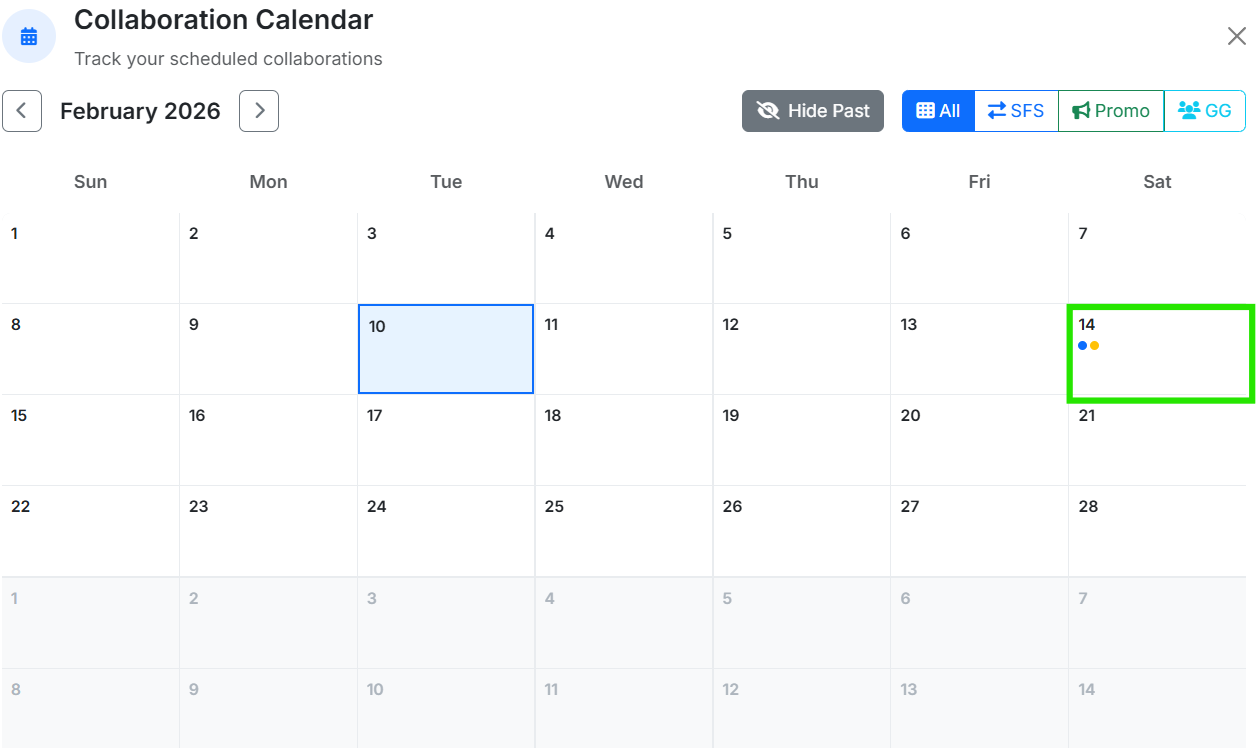
See all your collaborations at a glance
13View Day Details
Click on a date with collaborations to see the details, including the type, partner, and status of each collaboration.
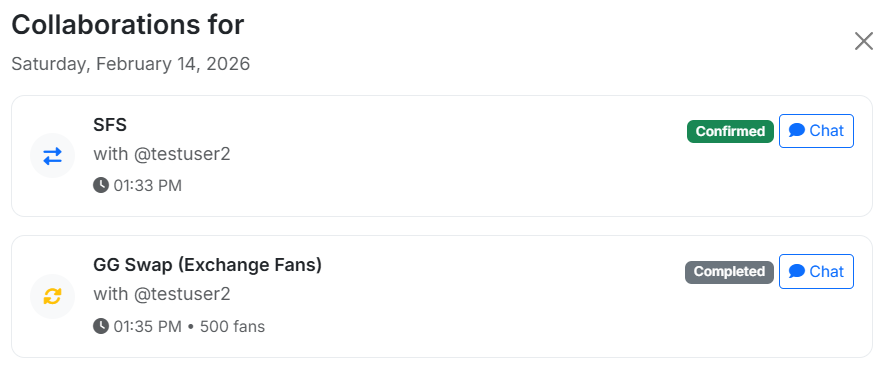
View detailed information for each day
Completing Collaborations
14Mark as Complete
When you've fulfilled your part of the collaboration, click "Mark Complete" to indicate that you're done.
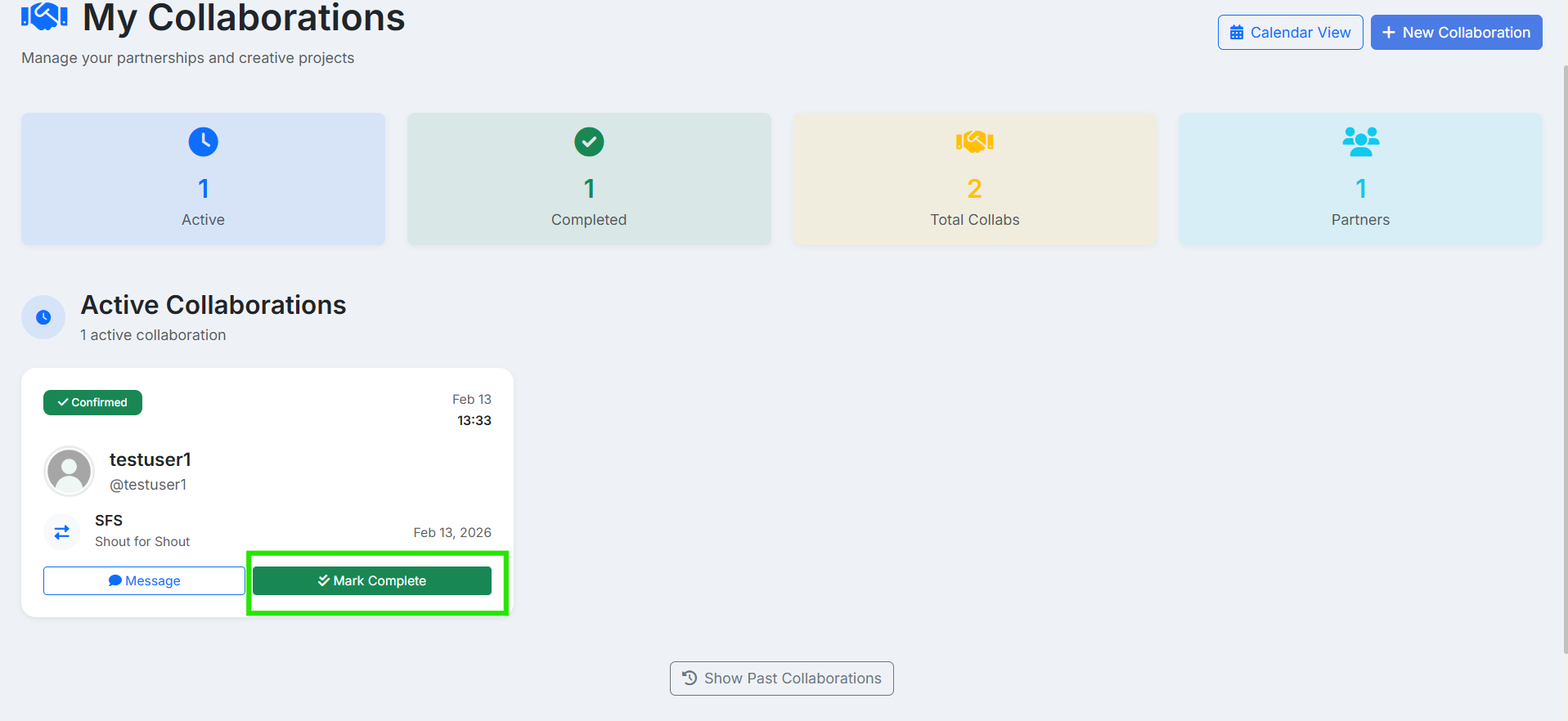
Click "Mark Complete" when you've finished
15Waiting for Partner
After marking complete, you'll need to wait for your partner to also mark the collaboration as complete. The status will show "Waiting for Partner".
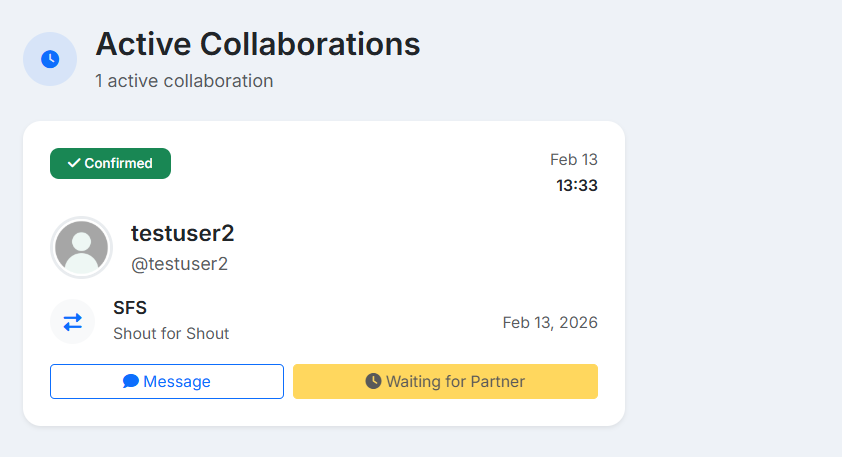
Wait for your partner to confirm
16Confirm Completion
When your partner has marked complete, you'll see a "Confirm Complete" button. Click it to finalize the collaboration. Once both parties confirm, the collaboration is officially completed!
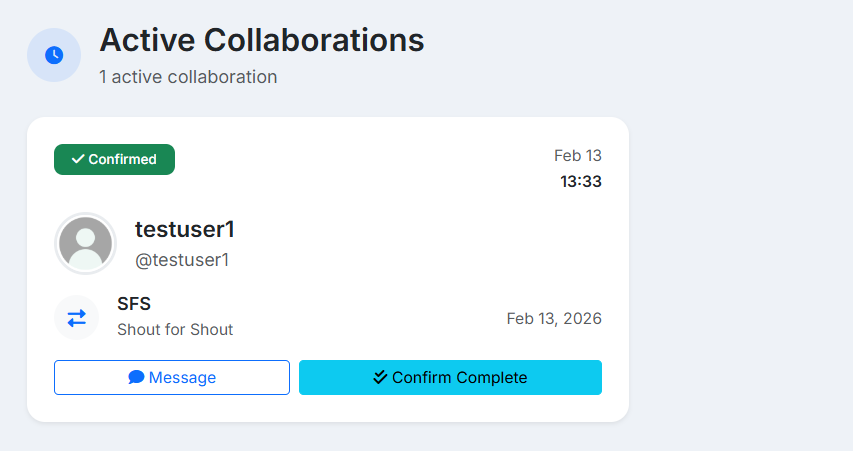
Click "Confirm Complete" to finalize
After completing a collaboration, don't forget to leave a review for your partner! Good reviews help build trust in the community and attract more collaboration opportunities.
Become a Seller
Start earning from paid promotions
If you want to sell promotional services on our platform, you need to complete the seller verification process. This is required to receive payments.
1Go to Wallet & Balance
Click on your username in the navigation bar and select "Wallet & Balance" from the dropdown menu.
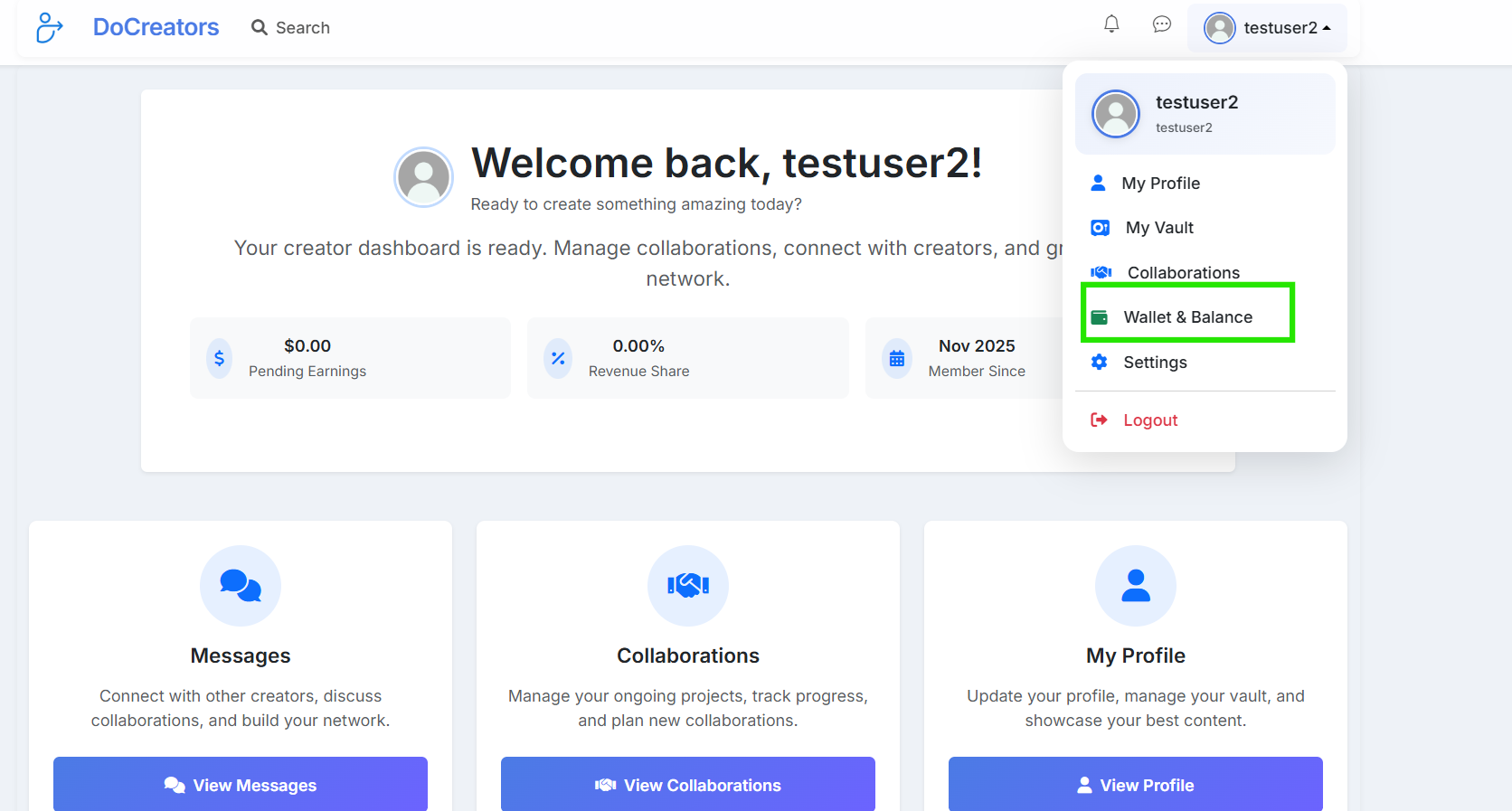
Select "Wallet & Balance" from the dropdown
2Click "Become a Seller"
On the Wallet page, you'll see the "Become a Seller" button in the top-right corner. Click it to start the verification process.
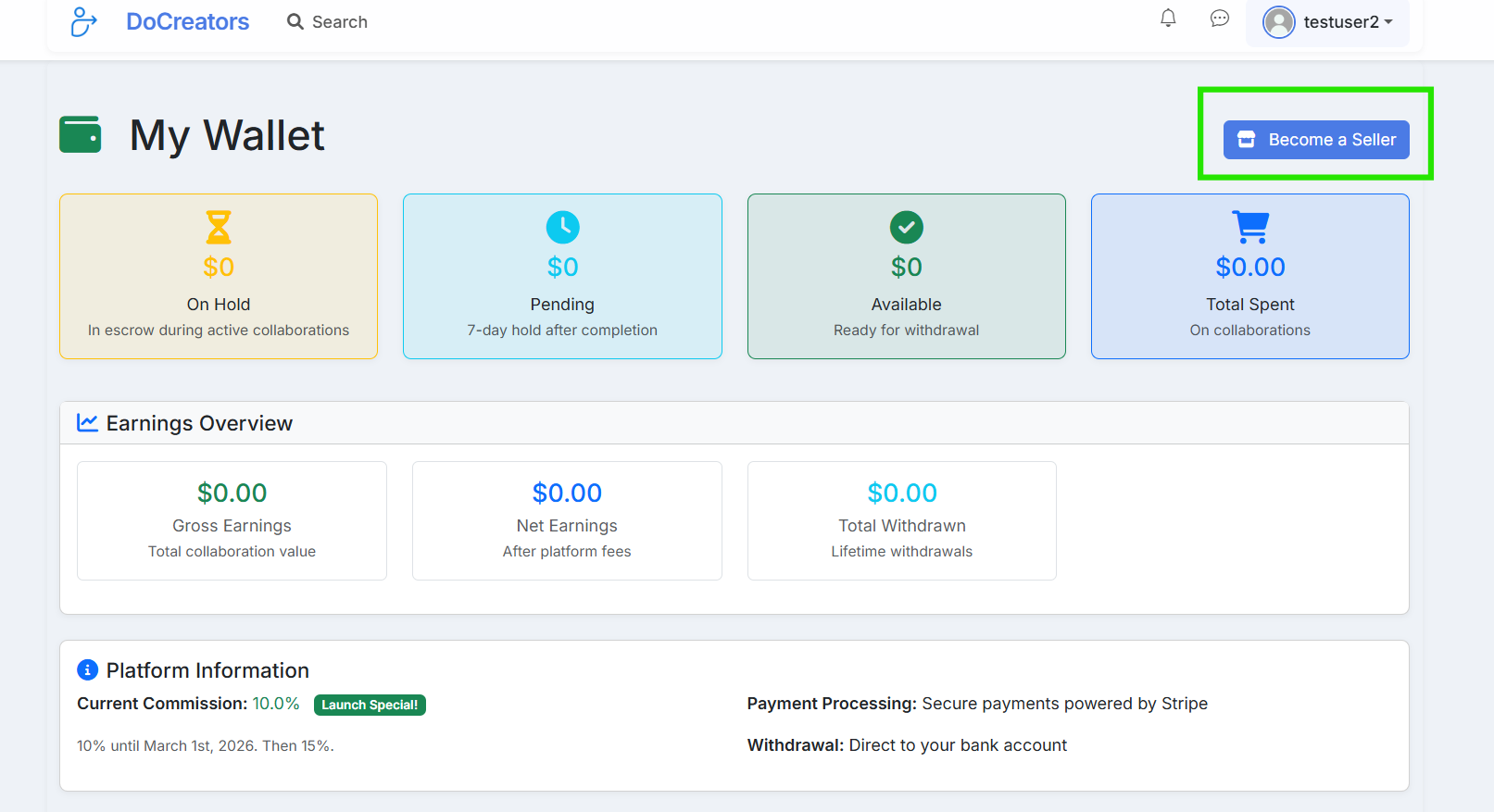
Click "Become a Seller" to begin verification
3Enter Your Information
Fill in your personal information including:
- First and Last Name (as it appears on your ID)
- Phone Number (with country code)
- Date of Birth (must be 18+)
- Address
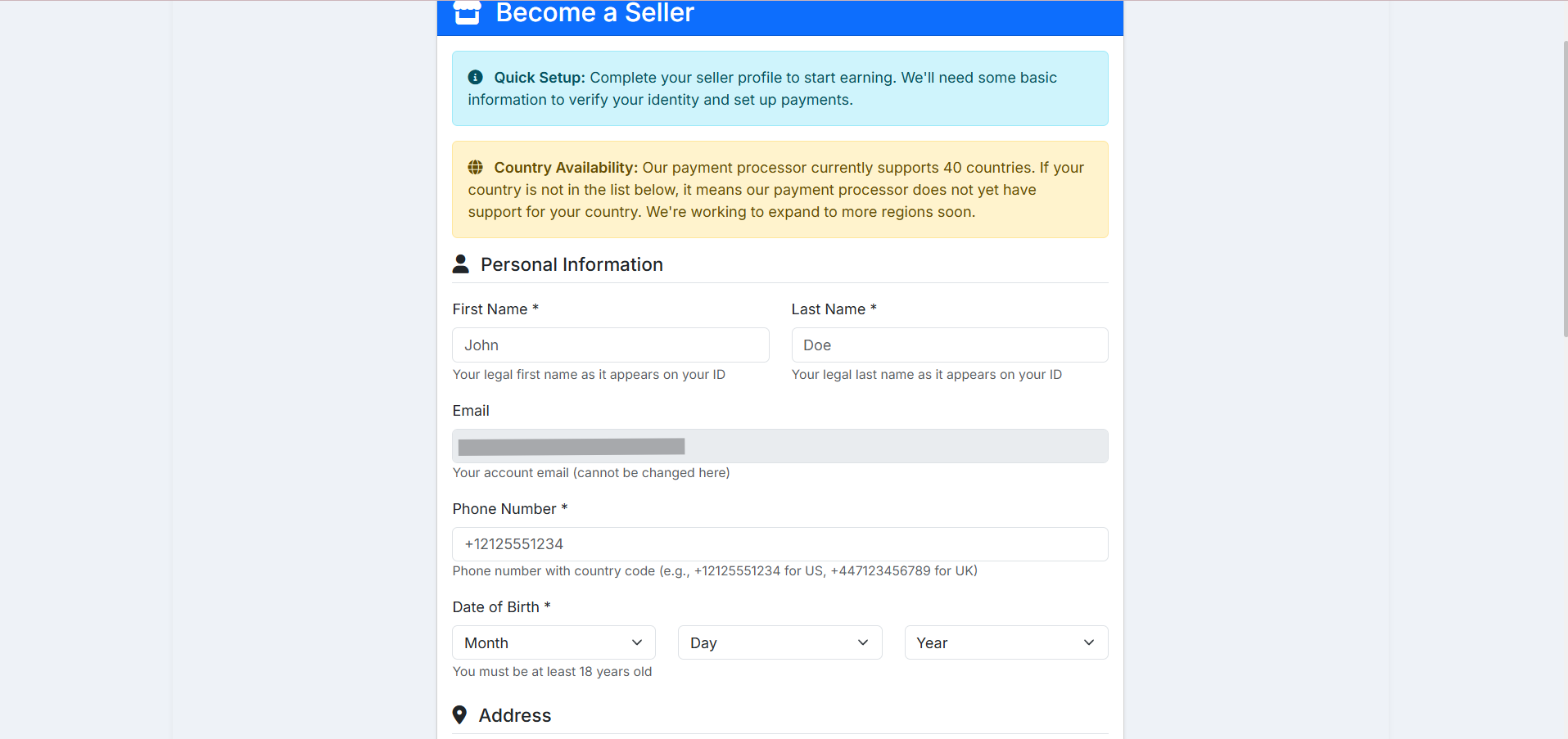
Fill in your personal details
4Complete Stripe Verification
After entering your business information, click "Continue to Verification". You'll be redirected to Stripe to complete identity verification and set up your payment method.
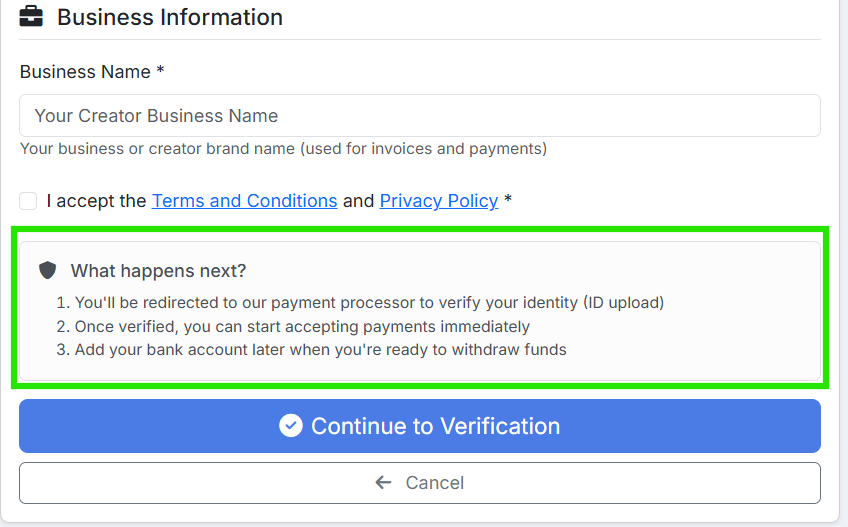
Enter business details and continue to Stripe verification
- You'll be redirected to Stripe to verify your identity (ID upload required)
- Once verified, you can start accepting payments immediately
- Add your bank account later when you're ready to withdraw funds
Need Help?
We're here to support you
The platform is still in its early stages, and we're constantly working on improving and adding new features. If you need any additional information or assistance, we're happy to help!
Email Support
contact@docreators.comSend us an email and we'll get back to you within 24-48 hours.
Telegram
@romeomrcReach out directly for faster responses and real-time support.